

Advertisement
Nearly 80% of U.S. knowledge workers now use at least one cloud app every day. This shows that digital organization tools are now a must-have, not just a nice-to-have.
These tools help us manage our work and personal lives better. They let us track tasks, store info, and build good habits. Smartphones and cloud services like Google Drive and Microsoft OneDrive are key. Apps like Trello, Asana, Evernote, Notion, and Slack are also popular.
This article will dive into how digital tools change our lives. We’ll look at how they help with time management, task tracking, and storing info. You’ll also learn about team collaboration and building good habits.
It doesn’t matter if you’re working, studying, parenting, or leading a team. The goal is simple: make things more organized and efficient. So, get ready to find out what tools might work best for you.
Understanding Digital Organization Tools
The move from paper planners to digital tools has been fast. Now, people use apps and cloud services to jot down ideas, plan projects, and share work. These tools range from simple to complex, fitting both solo users and big teams.
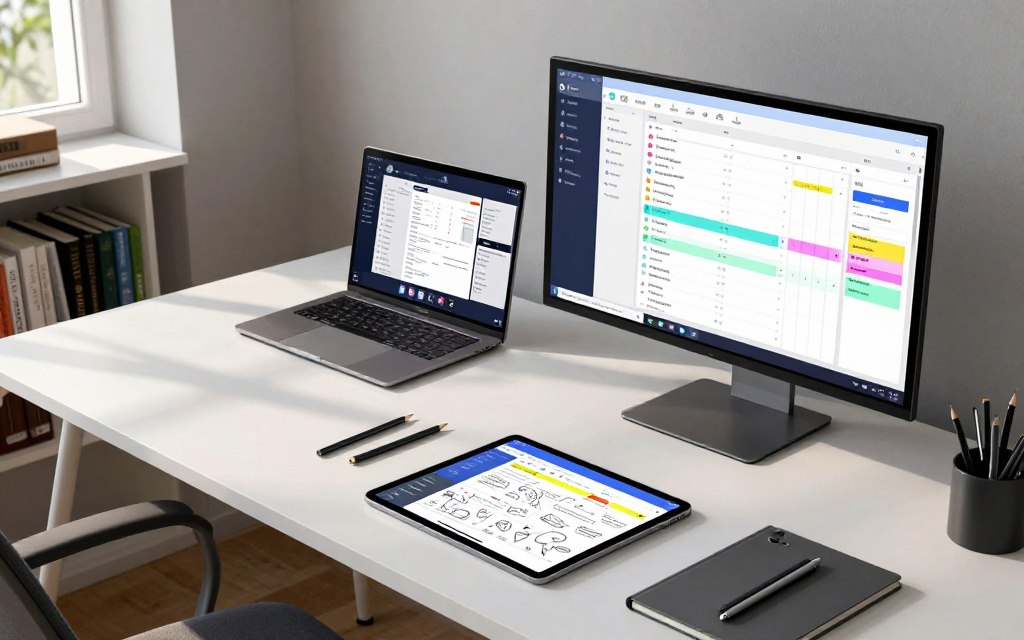
Let’s dive into what these tools do and why they’re important in our daily lives.
What Are Digital Organization Tools?
Digital organization tools are apps and software that help users manage information and tasks. They include task managers like Asana and Trello, calendars such as Google Calendar and Outlook, and note-taking apps like Evernote and OneNote. Cloud storage services like Google Drive and Dropbox are also part of this category.
These tools offer features like reminders, tagging, and fast search. They sync across devices, work offline, and connect with other services. Features for teamwork, like comments and shared boards, make collaboration easier. Many apps also have mobile-first designs and support for screen readers.
Importance in Modern Life
People use digital tools to replace paper lists and to help remember tasks. Experts call this a “second brain.” It reduces mental effort and helps users remember tasks without stress.
Teams see real benefits from using these tools. They get information faster, miss fewer deadlines, and have clearer project views. Remote work fits well with digital tools because they keep everyone on the same page, no matter where they are.
Cost is a big factor. Free versions like Trello and Google Calendar are great for starting small. But, bigger organizations can get advanced security and admin features with enterprise plans from Atlassian and Microsoft 365.
| Category | Example Tools | Key Features |
|---|---|---|
| Task Management | Asana, Trello | Boards, priorities, deadlines, team comments |
| Calendars | Google Calendar, Outlook | Event scheduling, reminders, shared calendars |
| Note-taking | Evernote, OneNote | Rich text, tagging, web clipping, search |
| Cloud Storage | Google Drive, Dropbox | File sync, sharing controls, version history |
| Integrations | Zapier, IFTTT | Automations, cross-app workflows, templates |
Types of Digital Organization Tools
Choosing the right digital tools can make your day run smoother. Here’s a quick guide to common tool families. You’ll find real brands and useful features to start using today.
Task Management Apps
Apps like Trello, Asana, Todoist, and Microsoft To Do help you stay on track. Trello uses kanban boards for visual workflows. Todoist is great for daily tasks, and Asana is perfect for team projects.
These apps have features like priorities, due dates, and integrations with Slack or email. They make it easy to move forward with your work.
They’re useful for tracking projects, personal tasks, and sprint planning. Many people use kanban for big plans and lists for daily tasks.
Calendar and Scheduling Tools
Calendars from Google, Microsoft, and Apple keep your schedule organized. Tools like Calendly make scheduling easier by automating invites. Shared calendars and event invites help teams see who’s available.
Look for features like time zone handling, recurring events, and task app integrations. Pairing a calendar with task lists helps protect focused work time and prevents overbooking.
Note-taking Applications
Apps like Evernote, Microsoft OneNote, Notion, and Bear capture ideas quickly. They save text, audio, screenshots, and web clippings. You can organize content with notebooks, tags, or pages.
These apps are great for meeting notes, research, journaling, and building knowledge bases. Notion is a hybrid tool that combines note-taking with databases and task management.
Cloud Storage Solutions
Platforms like Google Drive, Dropbox, Microsoft OneDrive, and Box centralize your files. They offer syncing, version history, shared folders, and offline access. Google Docs or Microsoft Office Online makes collaboration easy.
Use shared folders for project assets and version history to recover earlier drafts. Cloud storage connects many digital tools by making files accessible wherever you work.
Cross-category Features to Consider
Many tools blend categories. Notion combines notes, databases, and tasks. Google Workspace mixes calendar, drive, and collaborative docs. Choosing tools that work together reduces friction and keeps workflows smooth.
| Category | Representative Apps | Key Features | Best Use Cases |
|---|---|---|---|
| Task Management | Trello, Asana, Todoist, Microsoft To Do | Kanban boards, lists, priorities, subtasks, recurring tasks, integrations | Project tracking, daily to-dos, sprint planning |
| Calendar & Scheduling | Google Calendar, Outlook Calendar, Apple Calendar, Calendly | Shared calendars, event invites, time zone handling, recurring events, time blocking | Meeting scheduling, personal planning, team availability |
| Note-taking | Evernote, OneNote, Notion, Bear | Text, audio, web clippings, notebooks/tags/pages, OCR search | Meeting notes, research, journals, knowledge bases |
| Cloud Storage | Google Drive, Dropbox, OneDrive, Box | File syncing, version history, shared folders, offline access, document collaboration | Document centralization, team collaboration, asset storage |
Benefits of Using Digital Organization Tools
Digital organization systems change how we work. They reduce hassle, make clear what’s important, and help us focus. Here are the benefits of using digital tools for organization.
Increased Productivity
Tools like Trello help you see your work flow. Todoist supports focused work with timers and flags. These features help you finish tasks faster and spend less time looking for things.
Teams see a big drop in busywork when they use digital tools. These tools keep tasks and files in one place.
Better Time Management
Google Calendar’s time-blocking works well with task lists. It helps you avoid overbooking. When your calendar and tasks sync, your schedule shows what you can really do.
Notifications and shared calendars help protect your deep work time. Affordable tools make it easy for freelancers and small teams to plan better.
Enhanced Collaboration
Google Workspace and Microsoft 365 let you edit in real time. Shared Trello boards and Slack or Microsoft Teams integrations reduce the need for meetings.
These tools make feedback clear and workloads transparent. They help teams work together better and move faster.
Secondary Benefits
Using digital tools can also reduce clutter and set clear work-life boundaries. They make it easier to manage your time and focus on personal activities.
Many tools offer free or low-cost plans. This means small teams and solo workers can enjoy the same benefits as big companies.
Popular Digital Organization Tools
Choosing the right digital organization apps makes everyday planning smoother. Below are three popular digital organization tools that cover task tracking, scheduling, and note-taking. Try free tiers first to see what fits your workflow and mix tools for a cohesive system.
Trello: Visual Task Management
Trello uses kanban-style boards with lists and cards to map work visually. Cards hold checklists, due dates, labels, attachments, and comments. Power-Ups add integrations with Slack, Google Drive, and Jira for extra features.
Common workflows include content calendars, product roadmaps, and personal task boards. Trello is simple for individuals and scales for teams with Business Class and Enterprise plans. It ranks among the best digital organization tools for visual planning and quick onboarding.
Google Calendar: Scheduling Made Easy
Google Calendar simplifies event creation, invites, shared calendars, and color-coding. Integrated Google Meet links appear in events for instant video calls. Time zone handling helps teams and families across regions.
Use cases range from family scheduling to work availability and time blocking. Personal accounts include robust free features. Google Workspace adds administrative controls and expanded storage, making this one of the top digital organization tools for scheduling.
Evernote: Note-taking Revolution
Evernote offers note creation, web clipping, notebooks, tags, and powerful search with OCR for scanned documents. Templates speed note setup while cross-device sync keeps content available on phones, tablets, and desktops.
People use Evernote for research consolidation, meeting notes, and personal knowledge management. Free and Premium tiers let users test core features before upgrading. It stands as a strong option among the best digital organization tools for capturing and searching information.
Quick Comparison and How They Work Together
- Trello excels at visual task flow; it is simpler than Notion but less flexible for databases.
- Google Calendar is ubiquitous for time management; specialized schedulers like Calendly offer booking features that Calendar does not focus on.
- Evernote is powerful for search and clipping; other note apps may offer more collaborative pages but lack Evernote’s OCR strengths.
These top digital organization tools integrate well. Link Trello cards to Google Calendar dates. Save research from the web to Evernote and attach summaries to Trello cards. Use a few digital organization apps together to build a cohesive system that fits personal and team needs.
How to Choose the Right Digital Tool
Choosing the right app starts with a clear plan. Think about who will use it, what problems it must solve, and which devices you rely on most. This makes it easier to find digital tools that meet your needs without wasting time or money.
Assess Your Needs
Start with a checklist: individual vs. team use, goals like task tracking, note-taking, or file storage, mobile-first or desktop focus, budget limits, and privacy or compliance needs. Ask team members to list daily pain points or run a quick survey to reveal must-have features.
Use the checklist to map features to workflows. This step helps you decide if you need cloud-based digital organization software or a lean, affordable plan for personal use.
Consider User-Friendliness
Look for an intuitive interface, clear onboarding, and templates that reduce setup time. Check for helpful documentation, active support communities, and video guides that shorten the learning curve.
Run a pilot with a small group or sign up for a free trial. Test real tasks to see how quickly users adapt. This trial helps pinpoint the best digital organization tools for teams who need low friction and fast adoption.
Evaluate Integration Capabilities
Check native integrations with Google Drive, Microsoft 365, Slack, and major calendar apps. Confirm support for automation services like Zapier or IFTTT to build workflows without heavy coding. Ask if the vendor provides an API for custom connections.
Interoperability matters for long-term efficiency. Choose digital organization software that syncs across platforms and plays well with existing systems to avoid duplicate work and lost data.
Other selection criteria include scalability, offline access, cross-platform syncing, cost versus features, and vendor reputation. Balance security standards with functionality when comparing options.
Shortlist two to three candidates, run a two- to four-week trial using real tasks, gather feedback, and measure changes in productivity and clarity. This method helps you find the best digital organization tools or affordable digital organization tools that fit your team and budget.
Setting Up Your Digital Organization System
Begin by setting clear goals. This makes organizing your digital space easier. Choose specific goals like finishing a project or reaching inbox zero.
Step 1: Identify Goals
Write down your short- and long-term goals. Make them SMART: specific, measurable, achievable, relevant, and time-bound. Link each goal to the tools you need.
For example, aim for weekly reports. You’ll need reminders, a calendar, and a shared note repository.
Step 2: Select Tools
Keep your tools simple to avoid confusion. Use one task manager, calendar, note repository, and cloud storage. This makes your system easy and reliable.
Consider using Trello, Google Calendar, Evernote, and Google Drive together. Notion is great for those who prefer fewer apps.
Step 3: Create a Workflow
Make a process for handling tasks: capture, triage, schedule, execute, review. Capture tasks and notes right away. Then, sort them by priority and due date.
Block time for important tasks and work in focused sessions. Do a weekly review to tidy up and refine your system.
Use the same naming, tagging, and folder structures for everything. This makes finding items easy. For example, name files like ProjectName_Topic_Date.
Here’s a weekly review checklist:
- Clear inboxes and capture loose notes.
- Update project boards and move completed cards to archive.
- Check upcoming deadlines and adjust time blocks.
- Review tags and folders for consistency.
Here’s a template for project boards:
- Backlog — ideas and future tasks.
- To Do — tasks ready to start.
- In Progress — active work items.
- Blocked — issues needing attention.
- Done — completed tasks for weekly review.
Here’s how to onboard new team members:
- Grant access to chosen tools and shared drives.
- Walk through naming, tagging, and folder rules.
- Run a sample task from capture to archive.
- Schedule first weekly review with the new member.
Review and adjust your system every two to four weeks. Drop anything that complicates your setup. Keep your system simple and focused on habits.
A well-organized digital space helps everyone work better together. Consistency and simplicity are key to a strong system.
Integrating Digital Tools with Daily Routines
Start small when adding digital tools to your day. A simple routine makes using digital tools feel natural. Use habits that link your calendar, task lists, and notes to support your goals without hassle.
Morning Planning
Take 10–15 minutes each morning for a quick review. Open Google Calendar to see your appointments and mark important tasks in Trello or Todoist. Also, scan urgent emails.
Set a recurring reminder for this review to make it a part of your routine. Use templates in Evernote or Notion to list your priorities and quick notes for the day.
Midday Check-Ins
Take a short break around midday. Adjust your schedule, reassign tasks if needed, and confirm meeting prep. Mobile apps let you update your status from anywhere, keeping your work flowing.
Limit push notifications to only essential alerts. This reduces distractions while keeping you updated in real-time.
End-of-Day Reviews
Save 10–20 minutes to wrap up. Mark tasks as done, move unfinished items to the next day, and archive notes. Prepare tomorrow’s priorities to start with clarity.
Have a weekly review to tidy up, check progress, and refresh your workflows. Automate tasks and auto-archive where you can to save time and keep your apps organized.
Use calendar boundaries and Do Not Disturb modes to protect your personal time. A consistent shutdown routine helps prevent work from spilling into your personal time, supporting a healthy work-life balance.
| Routine | Time | Tools to Use | Quick Action |
|---|---|---|---|
| Morning planning | 10–15 minutes | Google Calendar, Todoist, Evernote | Check calendar, set top 3 tasks, time-block deep work |
| Midday check-in | 5–10 minutes | Mobile apps (Todoist, Trello), calendar | Adjust schedule, reassign tasks, confirm meeting prep |
| End-of-day review | 10–20 minutes | Evernote, Notion, Google Calendar | Mark done, reschedule, archive notes, plan next day |
| Weekly ritual | 30–60 minutes | Notion templates, Evernote, Trello boards | Clean inboxes, review goals, automate recurring tasks |
Overcoming Challenges with Digital Organization
Digital tools aim to bring order, but real-world obstacles often hinder progress. Many struggle with digital organization due to too many apps, messy settings, and inconsistent habits. This guide will highlight common issues and provide solutions to regain focus and efficiency.
Common Pitfalls to Avoid
Fragmentation is a major problem in digital organization. Files scattered across different platforms like Google Drive, Dropbox, and OneDrive slow down searches. Task lists duplicated in apps like Asana and Todoist cause confusion.
Over-customizing can also hinder your system. At first, it might seem smart to have many tags or project types. But, it becomes a hindrance when you need to act fast.
Ignoring regular clean-ups allows clutter to build up. Relying too much on features without disciplined use makes tools useless. And, forgetting to update security settings puts your data at risk.
Staying Consistent and Motivated
Begin with a simple routine that fits your daily life. Use calendar reminders for weekly check-ins. Apps like Habitica and Strides have streak features to keep you motivated.
Keep track of your progress. A simple weekly goal, like completing tasks or clearing your inbox, helps maintain momentum. Share your goals with someone you trust for extra motivation.
Troubleshooting and Team Advice
When too many tools cause problems, simplify. Archive old projects to reduce clutter. Hold quarterly sessions to clean up unused apps and files.
Teams benefit from clear naming and workflows. Create quick guides and hold short training sessions to ensure everyone uses the same methods. For help, check out vendor forums or Reddit/Stack Overflow.
Keep it simple. A few well-used tools are better than many used sporadically. Make small changes, test them for a week, and then adjust. This approach builds consistency over time.
Future Trends in Digital Organization
New tools will change how we manage work. Expect smarter assistants and smoother interfaces. Systems will work across devices without hassle. Big names like Google, Microsoft, and Apple are leading these changes.
AI and Automation
Artificial intelligence will make tools feel like a helpful coworker. AI tools will suggest tasks, sort notes and emails, and remind you at the right time. They’ll learn your habits.
Look for meeting summaries and scheduling that finds the best times. Automation will connect apps without needing code. Zapier and Notion’s builders will make this easy.
Enhanced User Experiences
User interfaces will get simpler and more like talking to a friend. You’ll add tasks or set reminders by typing or speaking. Voice assistants will help plan your day without your hands.
Getting started will be easier with interactive tutorials. Mobile apps will work better, even without internet. This is great for traveling.
Cross-Platform Functionality
Teams will use tools that work on all devices. You’ll find files, messages, and tasks easily, without switching apps. This is thanks to universal search.
APIs will make custom integrations easier. Offline designs will ensure your work syncs when you’re back online. This is crucial for teams working from anywhere.
Practical Considerations
These changes will make us more productive but raise privacy concerns. It’s important to have strong data controls and clear permissions. Learning about digital tools will help you use them better.
Industry Momentum
Keep an eye on Google Workspace, Microsoft 365, and Apple’s productivity features. Their focus on AI and teamwork will push others to improve. This will speed up the evolution of digital organization tools.
Security and Privacy Considerations
Keeping your work and personal info safe is key when using digital tools. Good habits and choosing the right platforms are crucial for privacy and trust.
Protecting Your Data
Use strong, unique passwords and a good password manager like 1Password or LastPass. Turn on two-factor authentication for all accounts that support it.
Back up important files to a safe place regularly. Only share calendars, documents, and boards with those who need to see them.
Control who can access shared folders and projects with specific roles. Check user access regularly to remove old or unnecessary permissions.
Choosing Secure Platforms
Look at how vendors protect data in transit and at rest. Check for certifications like SOC 2 and ISO 27001 when choosing secure systems.
Look for admin controls, single sign-on, and clear privacy policies. Good options include Google Workspace, Microsoft 365, Dropbox Business, and Box.
Check if vendors have good incident response plans and offer control over encryption keys. Make sure they follow laws like HIPAA if needed.
| Risk Area | Best Practice | Recommended Tools/Standards |
|---|---|---|
| Account takeover | Use password managers, unique passwords, and 2FA | 1Password, LastPass; FIDO2 authentication |
| Unauthorized sharing | Set granular permissions and review sharing links | Google Workspace access controls, Microsoft 365 groups |
| Data loss | Regular backups and versioning | Dropbox Business backups, Box retention policies |
| Regulatory risk | Confirm data residency and compliance certifications | SOC 2, ISO 27001, HIPAA-ready offerings |
| Vendor breach | Review incident response records and encryption options | Transparent vendor policies, support for customer-managed keys |
User Case Studies: Success Stories
Real examples show how tools work in practice. Below are concise, brand-based accounts that show measurable gains from adopting digital systems. Each case mixes common tools with clear outcomes so teams and individuals can learn practical steps and track results.
Personal wins
A freelance graphic designer used Trello, Google Calendar, and Dropbox. Trello tracked design stages, Google Calendar set firm delivery windows, and Dropbox held final assets. This setup cut missed deadlines and raised client satisfaction.
Reported gains included a 30% drop in revision turnaround and a 25% reduction in time spent searching files. This is a classic digital organization success story for freelancers.
A graduate student combined Evernote and Google Drive. Evernote notebooks sped up note retrieval. Shared Drive folders kept versions organized during advisor reviews.
Thesis progress moved faster, with a 35% improvement in focused writing time. This example shows how personal digital organization tools can boost research output and reduce friction.
Team efficiency
A small marketing team adopted Asana for task tracking and Slack for daily communication. Campaign tasks lived in Asana with clear owners. Slack replaced lengthy status meetings with brief updates and threaded conversations.
The team reported 20–40% time savings in coordination tasks and faster campaign turnaround. This is a strong digital organization case study for teams.
Remote product teams used Notion for centralized documentation and Jira for development sprints. Onboarding documents in Notion cut new-hire ramp time. Jira boards reduced context switching by grouping related work.
Teams saw fewer ad hoc status checks and a measurable drop in cycle time. This is a practical example of digital organization for teams improving delivery speed.
Metrics and common outcomes
- Time saved finding files: 20–40%.
- Fewer missed deadlines: reductions often near 25–35%.
- Meeting time cut: teams report 30% fewer status meetings.
- Faster project delivery: cycle time improvements of 15–30%.
Lessons learned
Standardize workflows before scaling tools. Pilot programs reveal fit and gaps. Offer focused training so teams learn consistent habits.
Track simple metrics: search time, missed deadlines, and meeting minutes. These steps separate isolated wins from lasting digital organization success stories.
How to adapt these examples
Match tool choice to the work style of your role or team. Start small, document baseline metrics, and run a short pilot. Use the outcomes to refine naming conventions, permissions, and integrations.
Encourage people to record wins so each group builds its own digital organization case studies.
| Scenario | Tools Used | Key Outcome | Typical Metric |
|---|---|---|---|
| Freelance designer | Trello, Google Calendar, Dropbox | Fewer missed deadlines, faster revisions | 25% fewer missed deadlines; 30% faster revision turnaround |
| Graduate research | Evernote, Google Drive | Centralized notes and faster drafting | 35% more focused writing time |
| Marketing team | Asana, Slack | Reduced meetings, faster campaigns | 30% fewer status meetings; 20–40% time savings |
| Remote product team | Notion, Jira | Smoother onboarding and fewer context switches | 15–30% improvement in cycle time |
Conclusion: Embracing Digital Organization Tools
Digital organization tools bring many benefits. They help you work better, manage your time, and team up smoothly. As technology gets better, these tools will too. It’s key to pick apps like Trello, Google Calendar, or Evernote with care.
The Road Ahead
Workflows will soon be faster and easier to use. Look for the best tools for you, but remember to keep your data safe. There are many affordable tools with free versions, perfect for trying before you buy.
Encouragement to Get Started
Start by making a simple plan. Figure out what you need, choose a few tools, and set up a basic workflow. Try one change at a time and check your progress weekly. Use tutorials and templates to make setup easier.
Here’s how to do it right: focus on being consistent, not complicated. Always back up your data and use two-factor authentication. Celebrate your small victories. With the right tools and a clear plan, you can reduce clutter, save time, and achieve your goals.